Why the room is missing
Naboro works through the Google account you connected as the company's calendar provider, so it can only see the calendars in that account's calendar list. When you pick a calendar for a room, Naboro shows what that account sees in Google Calendar, both under My calendars and Other calendars. A room calendar the account never subscribed to doesn't appear, even though it exists in your Google Workspace.
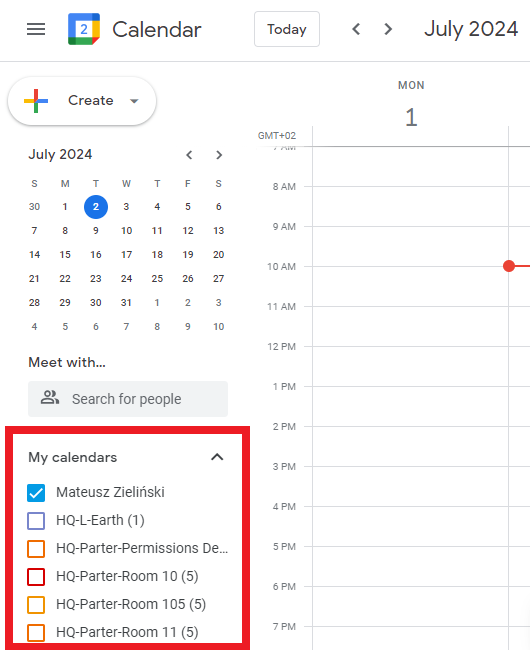
If your organization hasn't configured meeting room calendars yet, see this page in the Google Workspace documentation.
Add the room to the account's calendar list
You can add a meeting room calendar to the "My calendars" list by following the steps below:
-
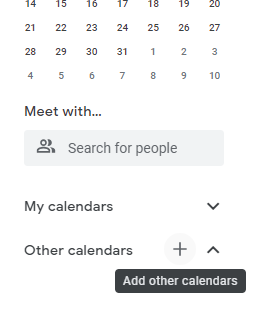
Scroll to the "Other Calendars" section and click the "Add
other calendars" button.
-
Choose "Browse resources" and select the meeting rooms you
want to see in Naboro. If "Browse resources" is unavailable,
click "Subscribe to calendar" and search for your meeting room
by name.
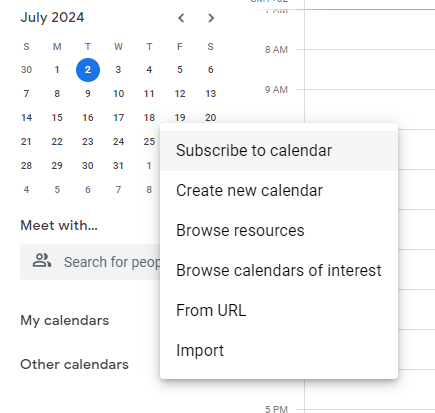
- At this point, the meeting room calendar should be visible in Naboro.
You might have read-only access to the meeting room calendars, depending on your permissions. If this is the case, ask your Google Workspace administrator to follow this documentation page and share meeting rooms with you with permission to "Make changes to events."
Still not seeing the room?
Check which account is actually connected. In Naboro, the company page lists the connected calendar providers with the account name next to each one. The room has to be in that account's calendar list, not in your own. If you're stuck, write to us at hello@naboro.io and we'll help.